How to Fix Blurry Headshots and Portraits with AI
A soft portrait costs credibility. See how to fix a blurry face in a picture with AI and get crisp, confident headshots in three steps.
4 min read
The first thing many investors, journalists and clients ever see of you is a thumbnail: your LinkedIn profile, your speaker page, your company's About section. If that thumbnail is a soft webcam grab, the blur reads as carelessness — an unfair but instant judgment. Studio reshoots are expensive, and most business portraits go soft for mundane reasons anyway.
You can fix the portrait you already have with Wondershare Repairit AI Face Enhancer rebuilds facial detail, sharpens eyes and restores natural skin texture in a single pass. Its convenient online version lets you quick-fix a headshot in your browser without installing anything. This guide covers why portraits go soft and how you sharpen yours in three steps.
Part 1. Why Your Headshot Is Business-Critical
What Makes Portraits Go Soft
Four ordinary causes account for most soft headshots:
- Webcam Quality: built-in cameras pair small sensors with aggressive sharpening, which produces that characteristic smeared look.
- Missed Focus: autofocus locks on the background or the edge of your frame, leaving your eyes just short of crisp.
- Platform Compression: professional networks re-encode uploads heavily, degrading whatever sharpness survived the shoot.
- Cropping from Group Photos: zooming in to isolate yourself magnifies every defect in the original.
What Is an AI Face Enhancer?
Wondershare Repairit is an advanced, AI-powered data repair tool that fixes corrupted videos, photos and files, and restores the quality of damaged media. Its AI Face Enhancer is the feature for portraits: the model detects faces and rebuilds what blur destroyed — eye definition, eyelashes, skin texture, hair strands — while keeping the result looking like you, not a beauty filter.
Key Features
- Facial Detail Reconstruction: eyes, brows and lips regain definition without plastic over-smoothing.
- Natural Skin Texture: pores and tone are preserved, so the enhanced portrait passes a first meeting.
- Glasses and Hairline Handling: transparent lenses and wispy edges are processed correctly, not smeared.
- Batch Processing: enhance your whole team's headshots for the About page in one run.
- Cross-Platform Availability: Windows and Mac desktop tools, plus an online edition for quick fixes.
Part 2. How to Enhance a Portrait in Three Steps
You can take a soft portrait to profile-ready in three steps.
Step 1. Open AI Face Enhancer and Upload Your Portrait
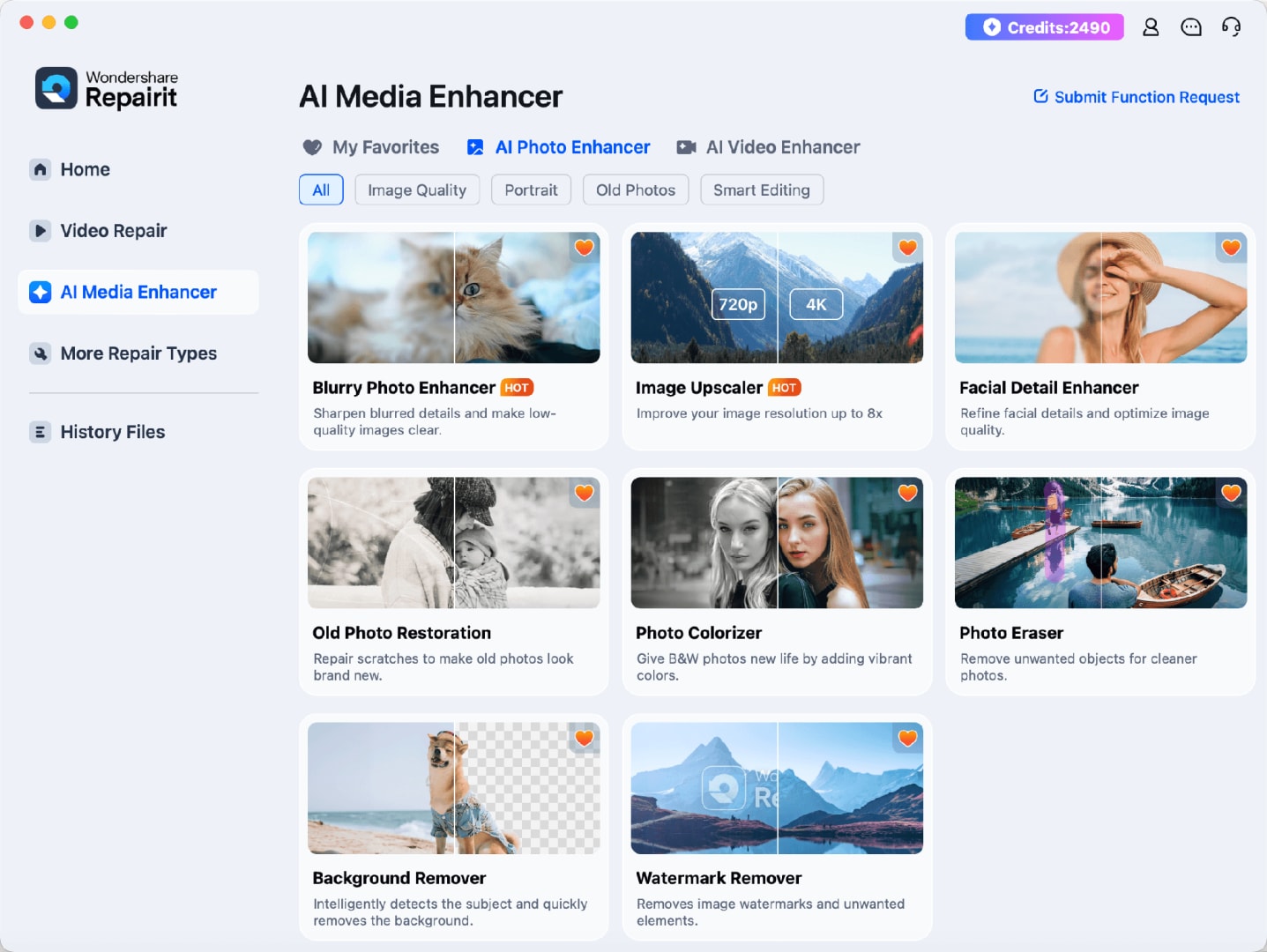
Launch Wondershare Repairit on your Windows or Mac, click the “AI Face Enhancer” section, then press “+ Add” or drag the photo in. On Windows, the launch screen looks like this:
 Step 2. Run the AI Face Enhancement
Click Enhance and the model locates every face in the frame, rebuilding detail eye by eye — no sliders, no masks.
Step 3. Compare and Save Your Headshot
Study the before-and-after preview at full zoom, confirm the likeness looks natural, then save the enhanced portrait for your profiles.
Key Technical Advantages
Why the result is boardroom-safe:
- Likeness Preservation: the enhancement sharpens your actual features; it does not swap in an idealized face.
- Speed: a profile-ready headshot in minutes, between meetings.
- Team Batches: one run covers every biography page before a launch or press tour.
- Online Convenience: to fix one headshot right now, open Repairit Online in your browser — upload, enhance, download — with nothing to install.
Part 3. Put Your Best Face Forward
Get the most from the enhanced image — and your next shoot:
- Refresh Every Profile at Once: upload the enhanced file to LinkedIn, your company bio and speaker pages together, so your public face matches everywhere.
- Shoot with Window Light Next Time: face a window and the camera will reward you; even enhanced portraits start best from a decent source.
- Export at the Platform's Size: avoid double compression by exporting at the recommended dimensions rather than oversized.
- Print or Poster Use: if the enhanced headshot is destined for a large printed banner rather than a profile picture, scale it up with the AI image upscaler so it stays sharp at poster size.
Conclusion
Your headshot is a business asset, and blur is a fixable defect rather than a reason to book a studio. With the AI Face Enhancer in Wondershare Repairit you can rebuild facial detail in three steps, and the online version fixes a single portrait in your browser. Update that profile picture this week — the next investor, client or journalist who looks you up will see you at your sharpest.
More in artificial-intelligence


Venture
Write for entrepreneurs, founders, and builders.
Share startup lessons, growth tactics, and founder stories with readers on the same journey.
One free account across In Plain English, Stackademic, Venture, and Cubed.
How it works- Startups & entrepreneurship
- Marketing & growth
- Productivity & leadership
- Founder stories & lessons learned
Sign in
Google or GitHub
Complete profile
Takes a few minutes
Get approved & publish
Start sharing
Why write for Venture?
Entrepreneurship is rarely a straight path. The lessons worth sharing are learned while building.
Comments
Loading comments…