
Photo by Boitumelo Phetla on Unsplash
Today we will learn how to send desktop notifications with Python. For this we will just need a computer with Python installed.
Packages and Setup
You’ll need Plyer’s notification for this project:
# In CMD or terminal
pip install plyer
# In project
from plyer import notification
You can send notifications by calling the `notify()` function from notification.
It takes four parameters:
`title` The large header text at the top of a notification.
`message` The longer, smaller text where you put more detailed information.
`app_icon` The image that appears next to the title and message.
`timeout` How long the message should show on screen.
If we run it right now, our notification should show up!

**Figure 1:** Notification!
***
> *💡* Speed up your blog creation with [***DifferAI***](https://differ.blog/differ-ai).
> Available for ***free******* exclusively on the ***free and open blogging platform,*** [***Differ***](https://differ.blog/)**.**
[**Try DifferAI — Your Free Writing Assistant**
*DifferAI is your writing co-pilot — seamlessly integrated within Differ’s text editor. Powered by an LLM specifically built for writers and bloggers.*differ.blog](https://differ.blog/differ-ai "https://differ.blog/differ-ai")
***
### Improving the design
Let’s add an image. All we have to do for this part is specify the file path of the image!
***Note:** You have to use a `.ico` file.*
app_icon = "image.ico"
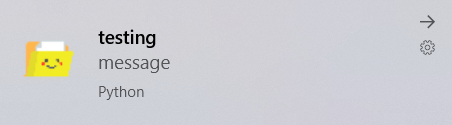
**Figure 2:** Notification with image!
### Delay
You can enforce a delay by using Python’s `time.sleep()`:
And it shows up every 30 seconds!

**Figure 3:** Notification with delay!
### 24/7 365
You can run this file forever with `pythonw`.
`cd` into the directory your `.py` file is, and then execute the command below
pythonw filename.py
It should execute without any errors.
We can confirm it works by going to our task manager and see the active tasks.

**Figure 4:** Python file running in background.
To kill the process, end the task.
If that doesn’t work, and you only have one `pythonw` task running, you can use this command.
taskkill /IM pythonw.exe /F
### Conclusion

I hope you enjoyed reading this, and that you find a good use for this tool! If you have any questions, suggestions, or general feedback, put it in the comments! Thanks!
POSTS ACROSS THE NETWORK

Stop Using Express.js in 2026: The Modern Node.js Backend Stack That Replaced It
IN PLAIN ENGLISHBY MADHURA JAYASHANKA

Next.js App Router vs Pages Router: After 6 Months in Production
IN PLAIN ENGLISHBY AHMET KAPTAN

Respin Mechanics Explained Through Game State Design
IN PLAIN ENGLISH
Best 3 Chainguard Alternatives for Hardened Container Images in 2026
STACKADEMIC
Best Stereo Camera for High-Precision 3D Scanning
VENTURE

Best Websites for Startup Founders in 2026
IN PLAIN ENGLISHBY RYAN BROWN